
If you want to download YouTube videos without installing any third-party software or browser extensions, there are several fast, simple options available. The easiest methods work directly inside your web browser and can be used seamlessly on both macOS and Windows PC.
Table of Contents
1. How to Download YouTube Videos Without Software
Follow these 6 simple steps to save any YouTube video directly onto your computer using your web browser:
Open YouTube Video
Open your preferred web browser (Safari, Chrome, Edge, or Firefox) and navigate to the YouTube video you wish to download.
Copy the Video URL
Highlight the full video URL from your browser's address bar and copy it to your clipboard (Press Cmd + C on Mac or Ctrl + C on Windows).
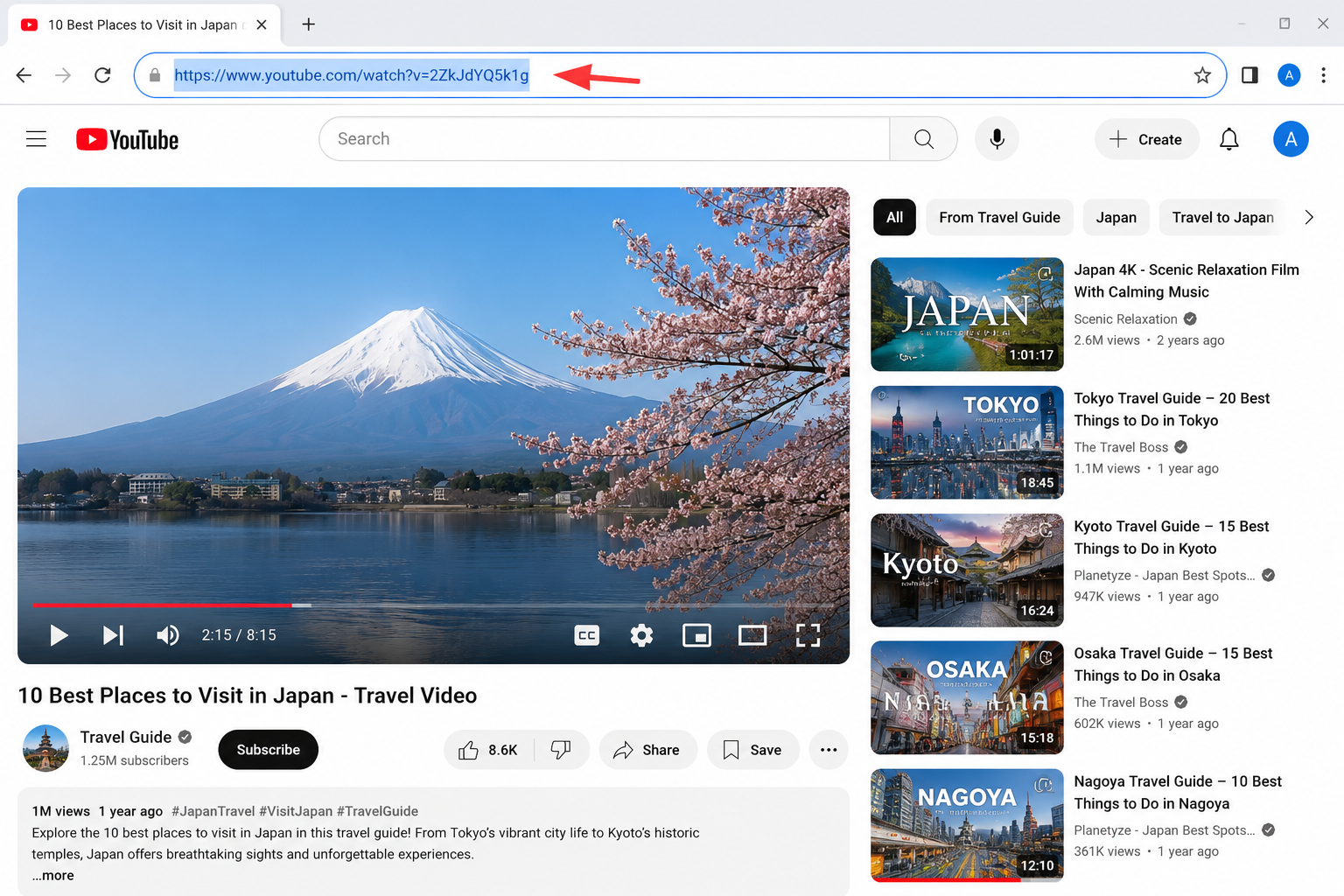
Step 2: Copying the YouTube video URL directly from the address bar.
Visit an Online Downloader
Open a new browser tab and visit a web-based video downloader (for instance, vidssave.com or similar browser-based downloading tools).
Paste Video Link
Click inside the download input box and paste your copied YouTube URL (Press Cmd + V on Mac or Ctrl + V on Windows).
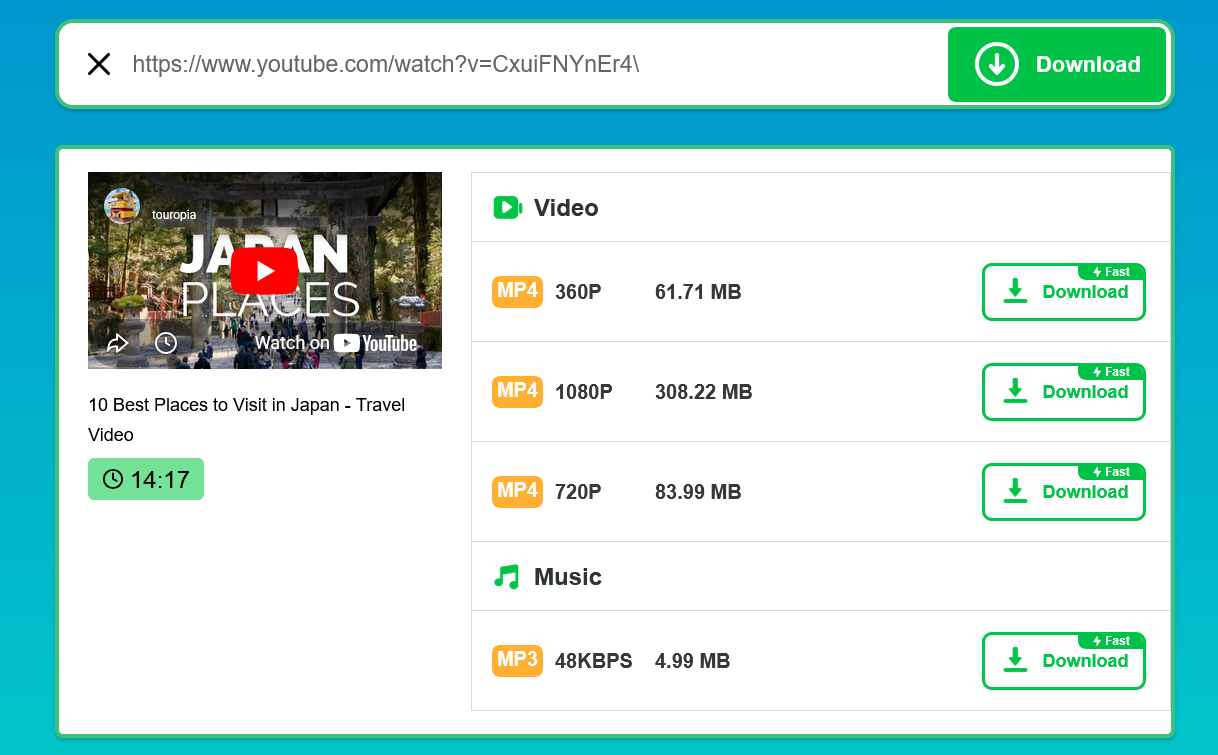
Step 4: Pasting the URL into the online downloader field to generate file links.
Select Quality & Format
Select your preferred video resolution (720p, 1080p MP4) or audio format from the displayed options list.
Click Download & Save
Click the main Download button to save the video file directly to your computer's storage.
2. Downloading YouTube Videos on Mac
The online downloading process works identically across macOS using Safari, Google Chrome, or Mozilla Firefox. Once downloaded, your video is automatically placed in your system's primary downloads folder. If you work with multimedia files regularly on Apple computers, you can also explore our guide to the Best Audio Editing Software for Mac for editing your audio clips.
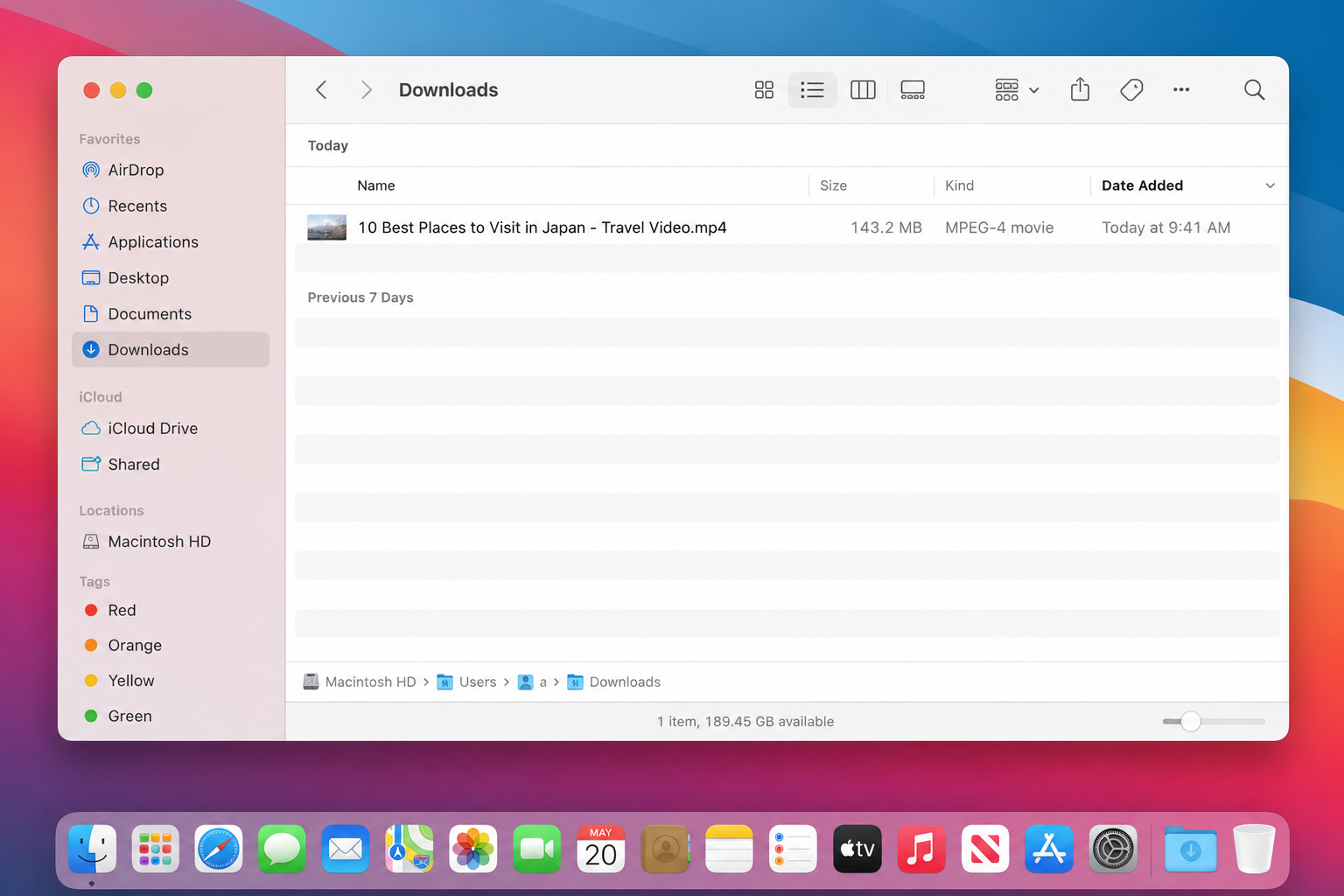
Downloaded YouTube video file safely saved in macOS Finder (Downloads folder).
3. Downloading YouTube Videos on Windows PC
Windows PC users can easily complete these steps using Google Chrome, Microsoft Edge, or Firefox. The saved file defaults to your Windows Downloads folder unless customized in browser settings. For users who prefer working without desktop installations, checking out our comparison of offline software tools and applications can help keep your system light and clutter-free.
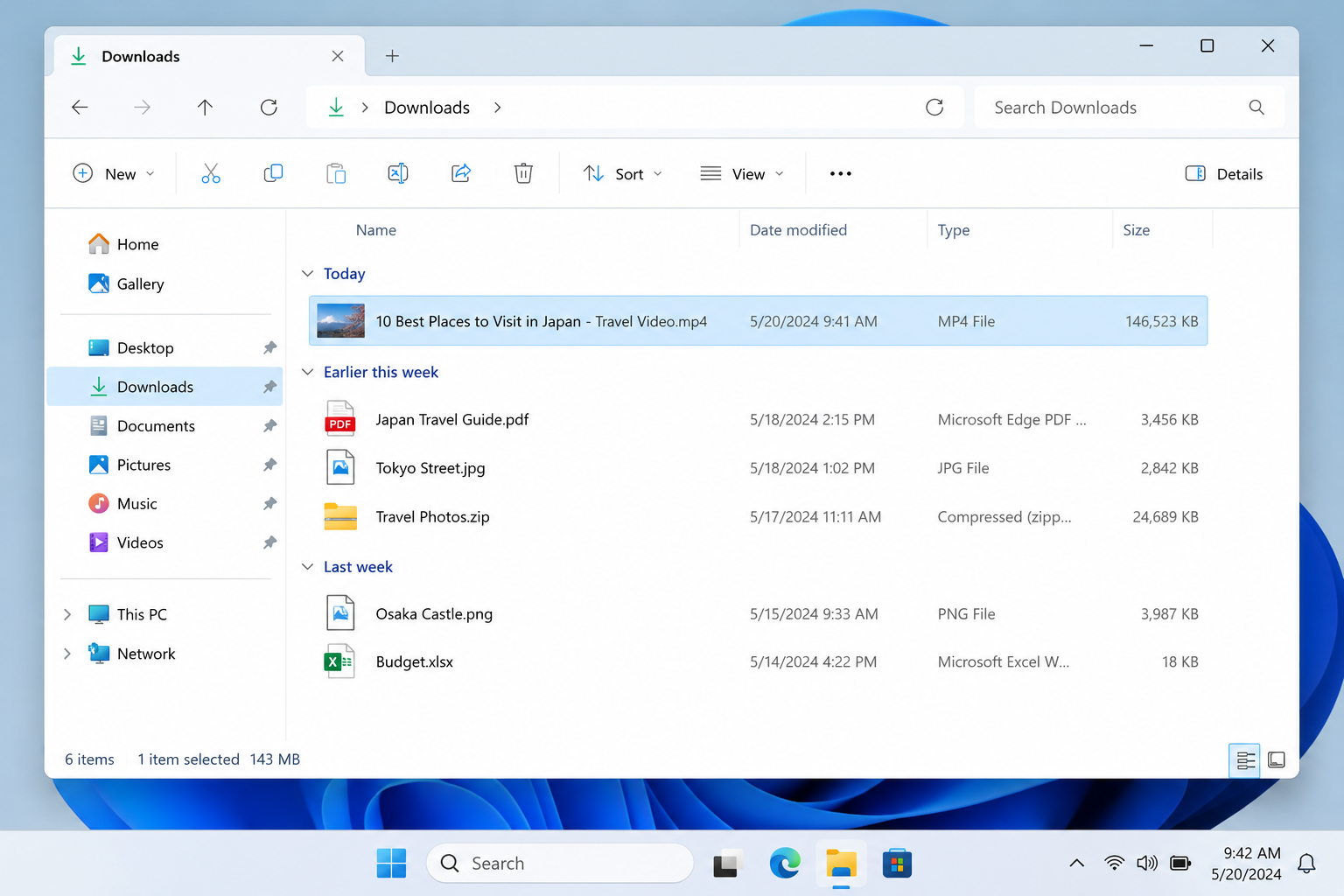
Downloaded YouTube video file stored in Windows File Explorer (Downloads folder).
macOS Users
Use Safari or Chrome. Access saved videos instantly via Finder > Downloads or check out curations on our Mac Software Hub.
💻 Windows PC Users
Use Chrome or Edge. Access saved files by pressing Ctrl + J in your browser or opening This PC > Downloads in File Explorer.
4. Testing Observations & Safety Tips
💡 Important Observations During Hands-On Testing:
We thoroughly tested this process across modern Mac and Windows browsers. While the core download process is quick, some free online web downloaders display third-party pop-up ads or fake "Download Now" advertisement buttons. Always double-check that you are clicking the genuine video link to prevent unwanted redirects.
5. Frequently Asked Questions (FAQ)
Can I download YouTube videos without installing software?
Yes. Browser-based video downloading websites allow you to extract and save YouTube videos directly through your web browser without installing any desktop software.
Does this method work on Mac computers?
Yes. Most browser-based online downloaders are fully compatible with Safari, Google Chrome, and Firefox running on macOS.
Where are the downloaded YouTube videos saved?
By default, your web browser saves downloaded video files directly into your operating system's main Downloads folder on both Mac and Windows.
Is YouTube Premium required to save videos?
No, YouTube Premium is not strictly required for browser downloads. However, YouTube Premium offers an official, ad-free offline downloading feature inside supported YouTube mobile and desktop apps.
6. Final Thoughts
Downloading YouTube videos on Mac and PC without software is fast and convenient when using trusted browser-based tools or YouTube Premium. If you only need occasional offline viewing, web-based methods offer a hassle-free solution without cluttering your system with extra applications.