
If you keep asking why does DaVinci Resolve keep crashing, the short answer is that Resolve leans on your GPU, RAM, storage and codecs harder than most editors. When one of them is out of line, it often quits instead of slowing down. The fix depends on when it crashes: at launch, on import, during playback, or at export.
This guide gives you nine fixes in the order I would try them. They cover freezes, DaVinci Resolve GPU errors, media offline problems, and crashes when rendering or exporting. Change one thing at a time and retest the same action after each step, otherwise you will never know what actually worked.
Quick answer: Most Resolve crashes come from five things: an unstable GPU driver, VRAM or RAM running out, difficult footage (HEVC or variable frame rate), a third-party plugin, or a damaged cache or project. Start with Fix 1 and work down.
Before You Start: Protect Your Project and Find the Crash Type
Do this before touching drivers or settings. Duplicate your timeline, then go to File > Export Project to save a .drp file. Open Preferences > User > Project Save and Load and make sure Live Save and Project Backups are on. A DRP does not contain your footage or cache, so keep source media safe separately.
Next, name the crash. The moment it happens tells you where to look.
| When it crashes | Check first | Go to |
|---|---|---|
| On startup | GPU driver, plugins, last project auto-loading | Fix 1, 7, 9 |
| When opening a project | Cache, one damaged timeline, project library | Fix 9 |
| On import | The clip's codec or frame rate | Fix 5 |
| Red "Media Offline" clips | File paths, drives, unsupported codec | Fix 6 |
| Playback, color, Fusion | VRAM, heavy effects, no proxies | Fix 2, 4 |
| Render or export | Encoder, effects at the same percentage | Fix 8 |
1Install a Stable GPU Driver
Resolve uses the GPU for almost everything: playback, color, Fusion, noise reduction and export. That makes the driver the first suspect, especially on Windows.
- NVIDIA: install the Studio Driver, not the Game Ready driver. Studio builds are tested against creative apps and update more slowly.
- AMD and Intel: use the latest stable release from the manufacturer. Skip beta and optional builds.
- Crashes started after a driver update? Roll back:
Device Manager > Display adapters > your GPU > Properties > Driver > Roll Back Driver. - Still unstable? Do a clean install using a tool such as DDU in Safe Mode, then install one known-good driver.
- Mac: GPU drivers ship with macOS, so update macOS instead.
Newest is not always best. Blackmagic's release notes list the minimum driver for each Resolve build, so check them before you chase the latest version.
2Clear DaVinci Resolve GPU Errors and VRAM Overload
A DaVinci Resolve GPU error usually appears as "GPU Memory Full", "GPU failed to perform image processing" or "CUDA failed to initialize". Sometimes there is no message at all and Resolve just closes. Work through these steps:
- Set the GPU mode. Go to
Preferences > System > Memory and GPU. Use CUDA for NVIDIA, Metal on Mac, and OpenCL or Auto for AMD. If Auto picks the wrong card, select your GPU by name. - Force the dedicated GPU on laptops. In Windows go to
Settings > System > Display > Graphics, add Resolve and set it to High performance. Resolve running on integrated graphics is a classic crash cause. - Cut the VRAM load. Lower the timeline resolution, then switch off Noise Reduction, Magic Mask, Super Scale and heavy OpenFX. You can also use
Playback > Bypass Color Grades and Fusion Effects. If the crash stops, you have found your VRAM ceiling. - Close GPU hogs. Shut down screen recorders, overlays such as Xbox Game Bar or ShadowPlay, and browsers with hardware acceleration.
- Use one GPU. If you run mismatched cards, deselect all but the main one and retest.
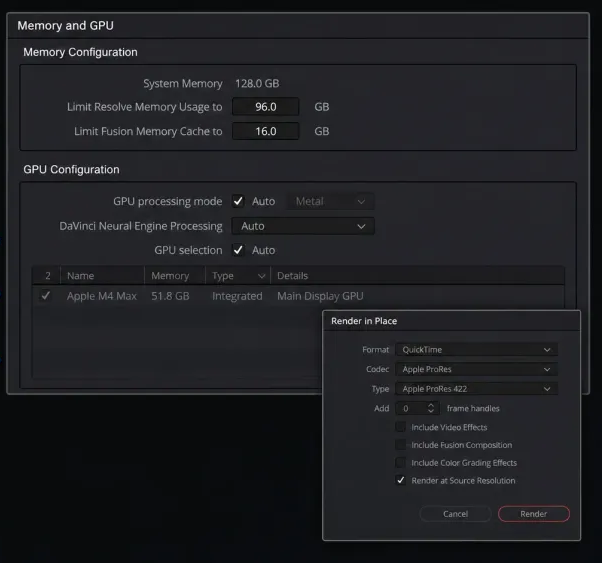
Rule of thumb: 4 GB of VRAM is a practical floor. Fusion, noise reduction and 4K timelines want more. If you hit the limit constantly, lowering resolution helps, but only a bigger GPU solves it for good.
3Free Up RAM, Storage and Heat
A system that is almost full will crash Resolve long before it feels slow. Check the basics:
- RAM: 16 GB is the minimum for comfortable editing, and 32 GB is safer for 4K and Fusion. Close browsers, launchers and cloud sync apps before you open a heavy project. If you're building a dedicated editing rig, check our guide on essential workstation PC and Mac software deals to optimize your environment.
- Windows page file: leave it enabled and system managed.
- Mac: watch memory pressure in Activity Monitor. Unified memory fills fast with Fusion and noise reduction.
- Free space: keep 15 to 20 percent free on your cache and render drives.
- Drive speed: keep media and cache on an SSD. Slow HDDs, flaky USB cables and network drives cause freezes that look like crashes.
- Power and heat: plug laptops in, use a high-performance power plan, and watch temperatures. A GPU near 90°C is throttling or heading for a shutdown.
Some antivirus tools scan cache folders in real time and can freeze a render mid-export. If that happens, exclude your cache folder from live scanning.
4Make DaVinci Resolve Run Faster (and Crash Less)
If you are wondering how to make DaVinci Resolve run faster, the answer is almost always to give it less work while you edit. A lighter timeline is also a more stable timeline.
| Setting | Where to find it | What it does |
|---|---|---|
| Timeline Proxy Resolution | Playback menu | Drops preview to Half or Quarter, which cuts GPU load |
| Proxy Media | Right-click clips > Generate Proxy Media | Light copies for smooth editing |
| Optimized Media | Right-click clips > Generate Optimized Media | Edit-friendly versions of heavy codecs |
| Render Cache | Playback > Render Cache > Smart | Pre-renders heavy sections so playback stops stuttering |
| Bypass Grades and Fusion | Playback menu | Quick test for effect-related crashes |
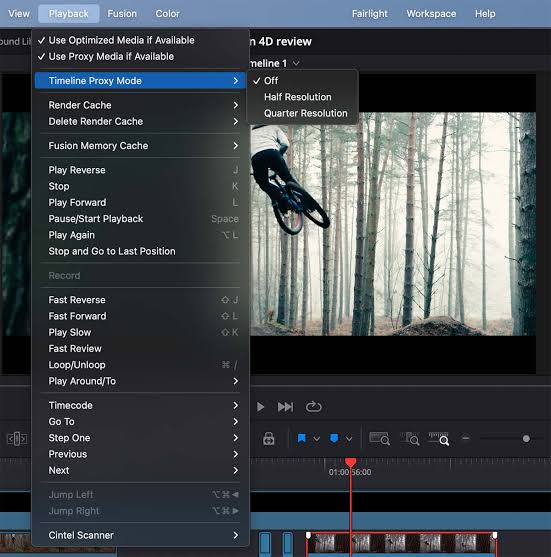
Two more habits help a lot: split a very long project into shorter timelines, and hold off on stacking noise reduction, Magic Mask and Fusion until the edit is locked.
5Convert Problem Footage (Free vs. Studio Hardware Acceleration)
One bad clip can take down a whole project. The usual offenders are phone footage, variable frame rate (VFR) files, 10-bit HEVC, screen recordings and some drone clips.
- Import files in small batches, then one by one, until you find the clip that triggers the crash.
- Check its codec, frame rate and bit depth with MediaInfo, then compare against Blackmagic's supported codec list. Some H.264 and H.265 variants only decode in Studio.
- Transcode the clip to ProRes or DNxHR at a constant frame rate, using a tool such as HandBrake or your camera software.
- Copy files from external drives to a local SSD and test again.
💡 Working with 10-Bit H.265 / Sony / Canon / Drone Footage?
The free version of DaVinci Resolve relies strictly on CPU decoding for 10-bit 4:2:2 files on Windows, frequently causing memory leaks and timeline crashes. DaVinci Resolve Studio unlocks full multi-GPU hardware acceleration, advanced Neural Engine tools (Magic Mask, Voice Isolation), and native 10-bit decoding without subscription fees.
Always keep the original file. If the converted clip is stable, you have proven the source was the problem, and you do not need to convert everything else.
6Fix DaVinci Resolve Media Offline
DaVinci Resolve media offline means a clip shows red in the timeline or Media Pool because Resolve cannot read the file at the saved path. It is not a crash by itself, but offline clips can trigger render errors and freezes, so fix them early.
Common causes:
- The file or folder was moved, renamed or deleted.
- An external or network drive was disconnected, or its drive letter changed.
- The project was opened on another computer with different paths.
- macOS blocked access to Desktop, Documents or an external volume.
- The codec is not supported on your version (Free vs Studio).
How to fix it:
- Reconnect the drive and restart Resolve. Many offline clips come back on their own.
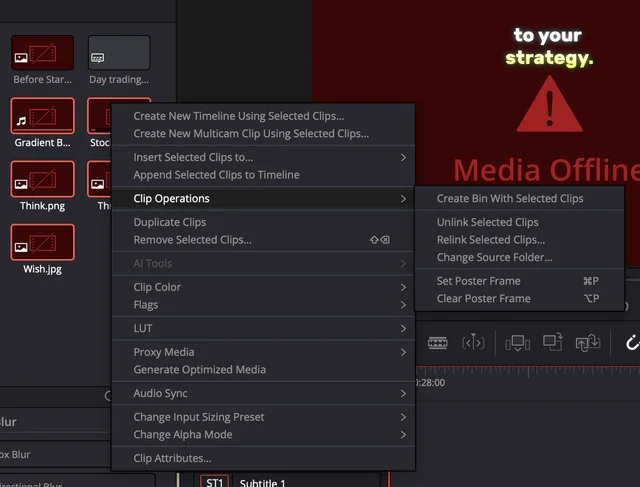
- Relink. In the Media Pool, select the offline clips, right-click, choose
Relink Selected Clipsand point Resolve to the folder that holds the originals. - Test the file elsewhere. If it plays in another player but stays offline in Resolve, the codec is the problem. Transcode it as in Fix 5.
- Mac permissions. Open
System Settings > Privacy & Securityand allow Resolve access to files, folders and removable volumes. - Stop it happening again. Keep one fixed project folder structure and never rename folders mid-project. If you're managing complex creative assets across multiple drives, see our guide on how lifetime software licenses save long-term editing costs.
7Isolate Plugins, Effects and Fusion
Third-party OpenFX plugins sit right in the middle of your GPU, color page and export pipeline. An outdated one can crash Resolve at launch or on a single clip. Audio creators experiencing similar VST/AU plugin hangs can also consult our guide on the best audio editing software for Mac to troubleshoot core driver conflicts.
- Crash at startup? Temporarily move your OFX plugins out of their folder (usually
C:\Program Files\Common Files\OFX\Pluginson Windows and/Library/OFX/Pluginson Mac). Note where they were, relaunch, then add them back one by one. - Crash on one clip? Duplicate the timeline and bypass the plugin on that clip or node.
- After a Resolve update? Update the plugin to a version that supports your Resolve build.
- Fusion crashes? Cache the comp, lower the preview resolution and disable nodes one at a time.
Test one plugin at a time. Removing five at once tells you nothing.
8Stop Crashes When Rendering and Exporting
DaVinci Resolve crashes when rendering because export is the heaviest thing it does. It decodes every clip, runs every effect at full quality and pushes the GPU encoder. A project that plays fine can still fail here. If you are dealing with a DaVinci Resolve export crash, go through these steps:
- Note the percentage. If it fails at the same point every time, a specific clip, effect, transition or Fusion comp at that position is the cause.
- Find the bad section. On the Deliver page choose
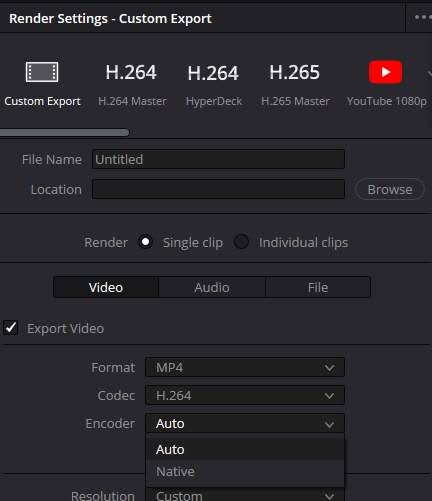
In/Out Rangeand render the first half. If it works, the problem is in the second half. Keep halving until you isolate a few clips, then bypass or replace them. - Change the encoder. Hardware H.265 is the most crash-prone option. Set the Encoder to
Native(software), or test with H.264. - Export a master first. Render ProRes or DNxHR, then compress that file to H.264 or H.265 separately. It is more stable and gives you a clean archive.
- Check the output drive. Render to a fast local drive with plenty of free space and a short path without special characters.
- Disable heavy effects for a test render. Noise Reduction, Magic Mask and stacked OpenFX spike VRAM at export quality.
- Fallback for deadlines: render in segments and join them afterwards using the same codec settings.
Quick test: if the render completes with GPU processing switched to software (CPU), the cause is your GPU driver or VRAM. Go back to Fixes 1 and 2. Do not leave Resolve in CPU mode for normal work, as it is much slower.
9Reset Cache, Repair the Project, Update Safely
If nothing above worked, look at the generated files and the project itself.
Clear the cache
Use Playback > Delete Render Cache and delete optimized media if you suspect those files. Start with the affected clip or timeline rather than wiping everything. Also check that your cache location, found in Project Settings > Master Settings > Working Folders, points to a drive with free space.
Test the project
- Open a different project. If it is stable, the app is fine and your project is the problem.
- Restore a recent Project Backup. It opens as a separate project and does not overwrite the original.
- Export the timeline (
File > Export > Timeline) and import it into a fresh project. - Turn off
Reload last working project on startupinPreferences > Userso a bad project cannot crash every launch.
Update or roll back with a safety net
Run a stable release, not a beta, for real work. If crashes began right after an update, the new build, a new GPU driver or a plugin is the likely cause. Back up your project library first, because a project saved in a newer version may not open in an older one. Reinstalling is a last resort. Export your projects first, and note that it will not fix a bad driver or hardware.
Still Crashing? Collect Logs
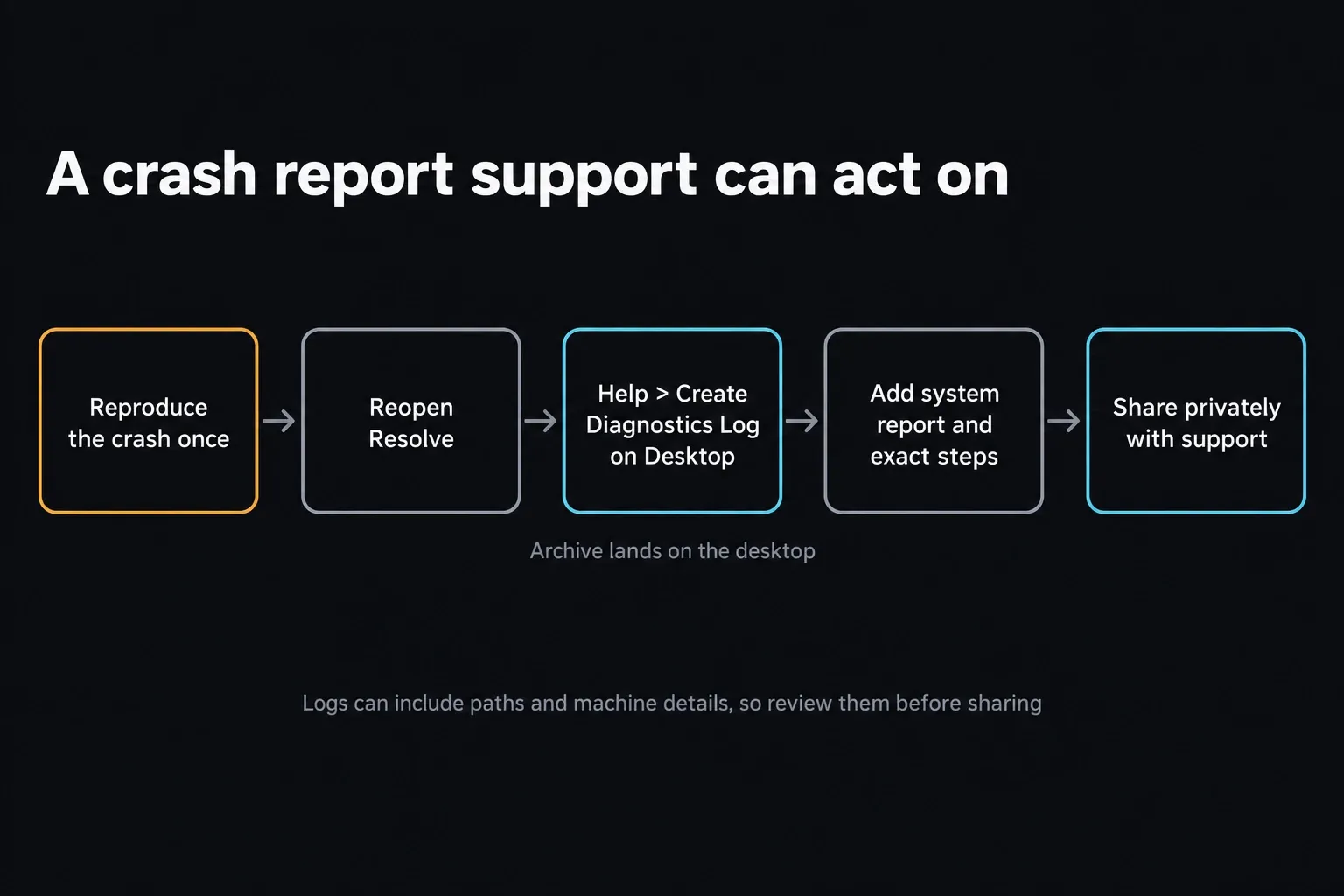
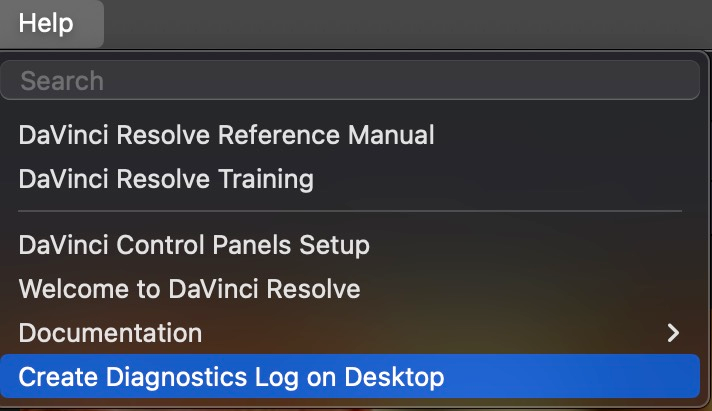
Reproduce the crash once, reopen Resolve and choose Help > Create Diagnostics Log on Desktop. If Resolve will not open, run the CaptureLogs utility from the install folder (C:\Program Files\Blackmagic Design\DaVinci Resolve on Windows or /Library/Application Support/Blackmagic Design/DaVinci Resolve on Mac).
Send the log to Blackmagic support or post it on their forum with your Resolve version, Free or Studio, OS, GPU, and the exact steps that cause the crash. Review the archive before sharing it publicly, since it can contain machine and project details.
How to Prevent Resolve Crashes in Future
- Keep Project Backups on and set to a reachable drive.
- Use proxies or optimized media for heavy footage.
- Stay on a stable GPU driver and update on purpose, not automatically.
- Keep cache, media and exports on fast SSDs with free space.
- Install only the plugins you really use and keep them updated.
- Work in shorter timelines instead of one giant project.
DaVinci Resolve Crashing: FAQ
Why does DaVinci Resolve keep crashing?
The usual causes are an unstable GPU driver, VRAM or RAM running out, difficult footage like HEVC or variable frame rate, a third-party plugin, or a damaged cache or project. Find the exact moment it crashes, then follow the matching fix above.
Why does DaVinci Resolve crash when rendering?
Rendering runs every effect at full quality and uses the GPU encoder, which exposes problems playback hides. Check whether it fails at the same percentage, switch the encoder to Native, render a ProRes or DNxHR master, and make sure your output drive has free space.
How do I fix a DaVinci Resolve GPU error?
Install a stable GPU driver (NVIDIA Studio on NVIDIA cards), set the GPU mode and card under Preferences > System > Memory and GPU, lower timeline resolution, and turn off Noise Reduction, Magic Mask and heavy plugins to relieve VRAM.
Why does DaVinci Resolve say media offline?
Resolve cannot read the file at the saved path. The file was moved, a drive disconnected, permissions were blocked, or the codec is unsupported. Reconnect the drive and relink clips from the Media Pool, or transcode the file if it plays elsewhere.
How do I make DaVinci Resolve run faster?
Lower the timeline proxy resolution, generate proxy or optimized media, use the Smart render cache, keep media on an SSD, and avoid stacking heavy effects until the edit is finished.
Why does my DaVinci Resolve export crash at the same percentage?
A specific clip, effect or Fusion comp at that point in the timeline is the cause. Render the timeline in halves using In/Out Range to isolate the section, then bypass or replace the problem item.
Final Thoughts
Resolve crashes feel random, but they rarely are. Name the crash, protect your project, and change one variable at a time: driver, GPU settings, footage, plugins, then export settings. Most editors fix the problem within the first three or four steps. If you still can't, a diagnostics log gives Blackmagic support what they need to help.