
Few things derail a creative workflow faster than clicking play and watching your timeline drop frames, stutter, or crawl. If you've been searching for how to make DaVinci Resolve run faster, the truth is that Resolve handles media fundamentally differently than editors like Premiere Pro or Final Cut. Instead of relying solely on your CPU, Resolve delegates real-time debayering, node math, and playback to your GPU and VRAM.
When high-bitrate codecs, unmanaged cache drives, or heavy temporal nodes overload your hardware pipeline, playback grinds to a halt. If this instability is causing full software shutdowns, see our companion troubleshooting guide on why DaVinci Resolve keeps crashing and how to fix GPU errors. The good news? You don't need a $4,000 workstation upgrade to get smooth 60fps playback. In this guide, we break down eight proven system tweaks, cache cleanup workflows, and playback adjustments to stop DaVinci Resolve lagging on any Windows PC or Mac.
Quick Fix Summary: To speed up Resolve immediately: (1) Lower your Timeline Proxy Resolution to Half or Quarter, (2) Switch Render Cache to Smart, (3) Use Render in Place on complex node trees, (4) Transcode Long-GOP H.264/H.265 media into ProRes/DNxHR proxies, and (5) Clear accumulated cache files that choke your SSD storage.
1Change Timeline Resolution and Use Proxy Mode
Editing raw 4K or 6K footage on a 4K timeline forces Resolve to calculate every single pixel in real time across every cut. A common misconception among beginners is that your timeline resolution must match your export resolution throughout the entire editing process. It does not.
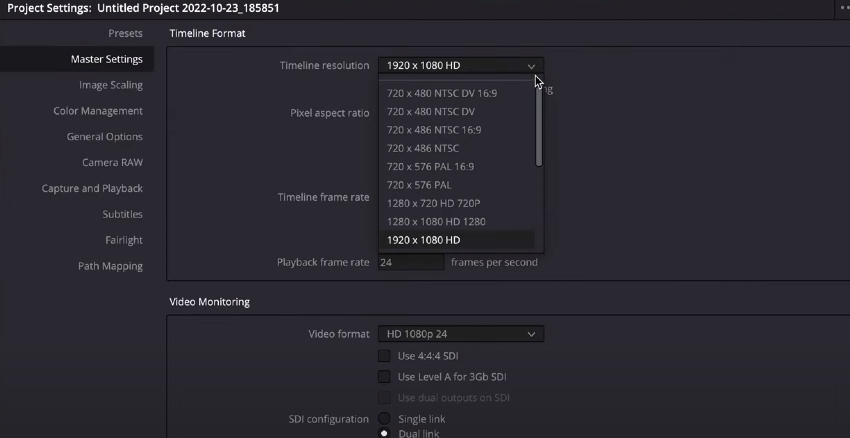
How to Change Resolution in DaVinci Resolve (Temporarily)
Lowering your working resolution during the edit phase drastically reduces GPU memory bandwidth without affecting your final export:
- Open Project Settings (click the gear icon in the bottom-right corner, or press
Shift + 9). - Under Master Settings > Timeline Format, locate Timeline Resolution.
- If your footage is 4K (3840 × 2160), change the dropdown to 1920 × 1080 HD.
- Ensure Mismatched Resolution Scale is set to "Scale entire image to fit" so your framing stays identical.
- Click Save.
When you are ready for final delivery, simply return to this menu and toggle it back to 4K or Ultra HD before rendering.
Timeline Proxy Resolution (The 2-Second Playback Win)
If you don't want to modify project settings, use the dynamic playback proxy mode. Go to the top menu bar and select Playback > Timeline Proxy Resolution, then switch from Full to Half or Quarter. This instructs Resolve's viewer to process frames at 1080p or 540p during scrubbing and playback, reducing the pixel count your GPU must draw by up to 75%.
| Proxy Setting | Effective Preview Resolution (from 4K) | GPU VRAM Load | Ideal For |
|---|---|---|---|
| Full | 3840 × 2160 | 100% (High) | Final color grading review |
| Half | 1920 × 1080 | ~50% (Moderate) | Smooth trimming, audio sync & pacing |
| Quarter | 960 × 540 | ~25% (Minimal) | Laptops & integrated GPUs (Intel/AMD) |
2Generate Lightweight Proxy Media (ProRes & DNxHR)
Highly compressed camera formats—such as 10-bit H.264, H.265 (HEVC), and drone footage—are designed for small SD card file sizes, not for smooth video editing. They use "Long-GOP" compression, meaning your computer must decompress dozens of surrounding frames just to display one single cut. This is the #1 reason users experience stuttering on timelines even with fast processors.
Generating intra-frame edit codecs like Apple ProRes (Mac) or Avid DNxHR (Windows) allows Resolve to read each frame individually without CPU decompression spikes:
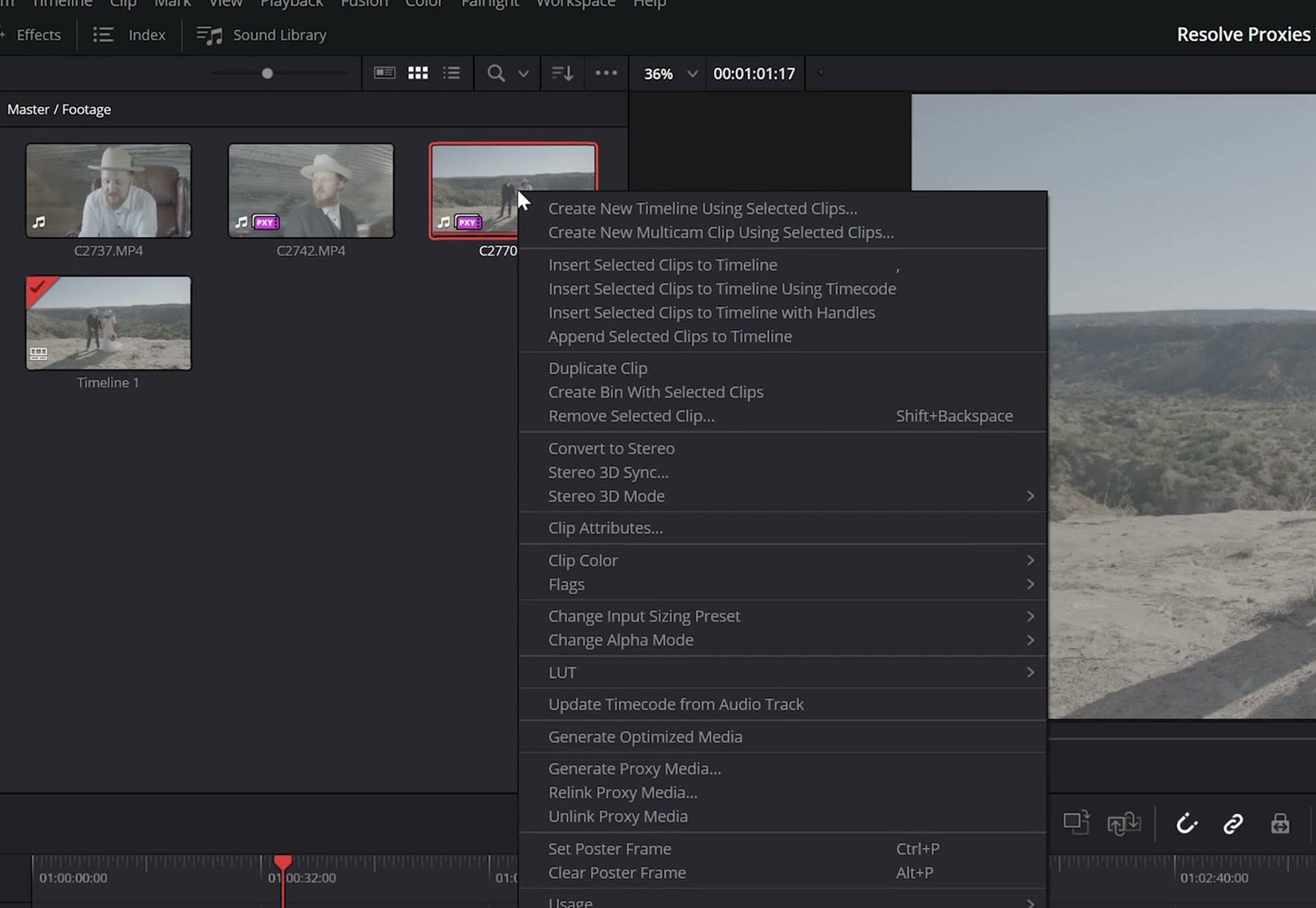
- Go to
Project Settings > Master Settings > Optimized Media and Render Cache. - Set Proxy Media Format to
DNxHR LB(Windows) orProRes 422 Proxy(Mac). The "LB" stands for Low Bandwidth and provides instantaneous playback with minimal disk usage. - In the Media Pool, select all heavy video clips, right-click, and choose Generate Proxy Media.
- Under the top
Playbackmenu, ensure Proxy Handling > Prefer Proxies is checked.
Pro Tip: Unlike older legacy workflows, DaVinci Resolve automatically switches back to your original camera files upon final export in the Deliver page, guaranteeing maximum master quality without manual relinking.
3How to Clear DaVinci Resolve Cache and Reclaim Space
As you edit, apply transitions, and grade footage, Resolve creates uncompressed background render files. Over a few weeks, these cache files routinely swell to 100GB–500GB. When your SSD storage drops below 15% free capacity, drive write speeds plummet, causing extreme timeline lag, freezing, and render failures. Knowing how to clear DaVinci Resolve cache is vital regular maintenance.
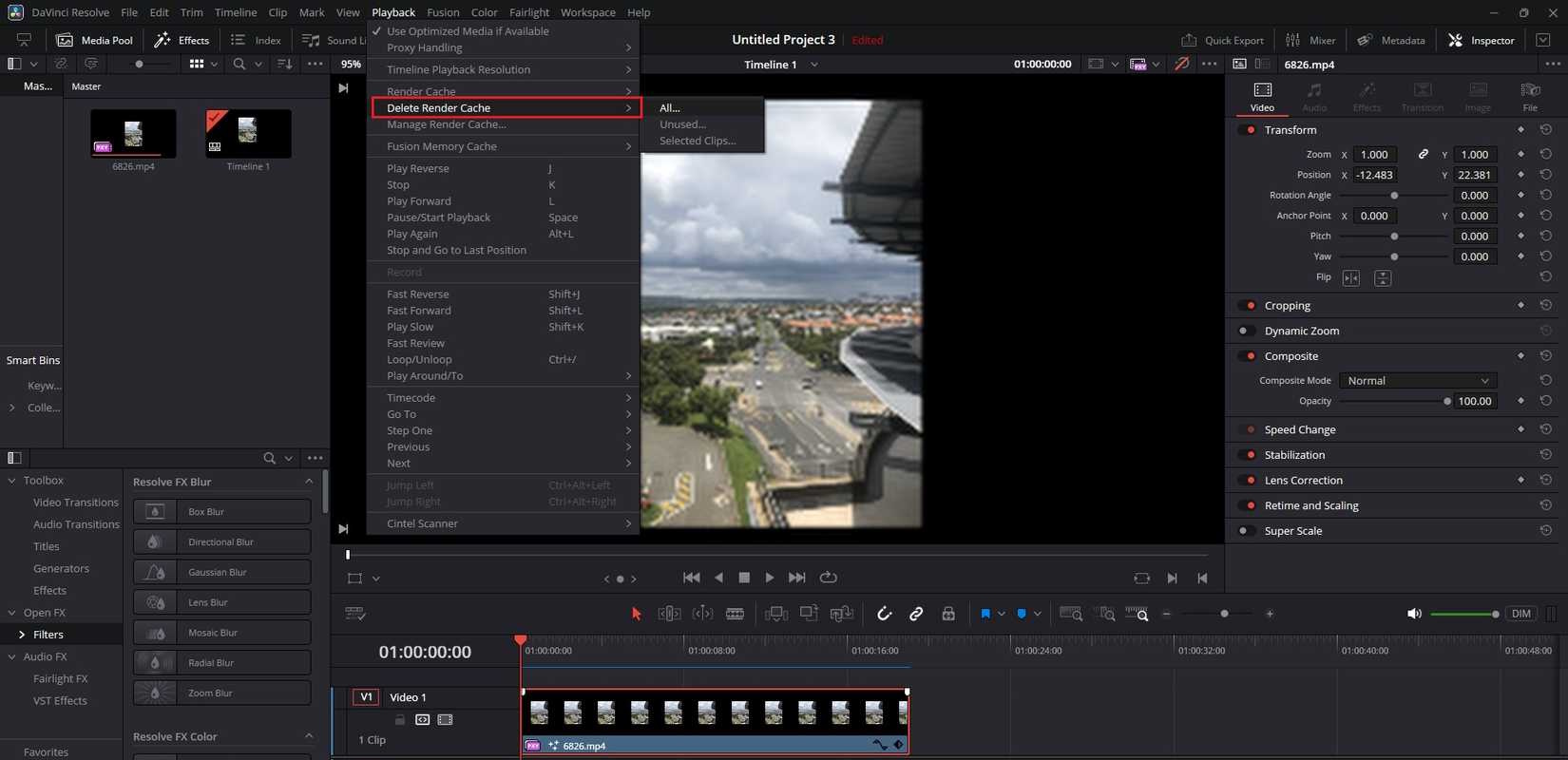
Method 1: In-App Cache Cleanup (Recommended)
The cleanest and safest way to dump old cache without breaking your project timeline:
- Navigate to the top menu and select
Playback > Delete Render Cache. - You will see three options:
- All: Wipes all rendered cache files across the current timeline. Safe to run at any time; Resolve will simply re-render clips when needed.
- Unused: Purges cached frames from deleted clips, rejected takes, and trimmed footage that no longer exist on your timeline.
- Selected Clips: Allows you to highlight a specific problem clip and delete only its cached node data.
- Select Unused for routine project maintenance, or All if your project is stuttering severely.
Method 2: Deleting the CacheClip Folder from Your Hard Drive
If Resolve won't launch or you need to recover hundreds of gigabytes from old, completed projects:
- Go to
Project Settings > Master Settings > Working Foldersto check your Cache Files Location. - Open your Windows File Explorer or Mac Finder and locate the
CacheClipfolder. - Inside, you will find folders named with long project ID strings. You can safely delete cache folders for past, archived projects that you are no longer actively editing.
4Optimize Heavy Nodes: How to Reduce Noise in DaVinci Resolve Efficiently
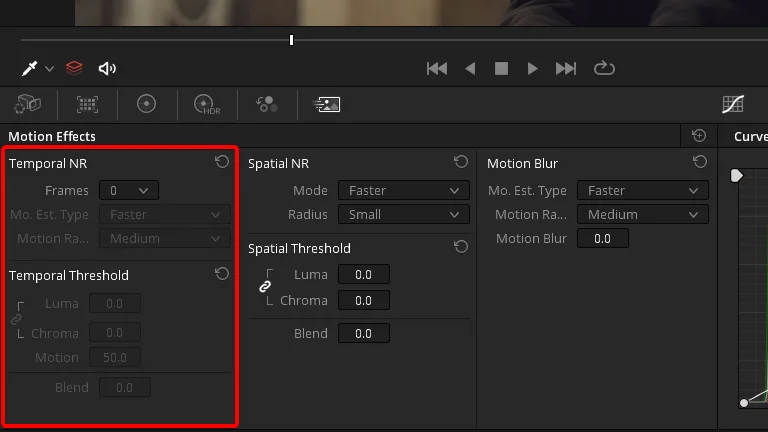
Temporal Noise Reduction (TNR) is one of the most powerful features in DaVinci Resolve Studio, but it is notoriously system-intensive. A single noise-reduction node analyzing 3 to 5 temporal frames across a 4K timeline can instantly drag playback down from 60fps to 4fps. If your project includes heavy Fairlight audio cleanup as well, consult our guide on the best audio editing software for Mac to offload audio stem processing.
When learning how to reduce noise in DaVinci Resolve without choking your system, order of operations is critical:
- Leave Noise Reduction for Last: Do not apply spatial or temporal noise reduction during the rough cut or narrative assembly. Complete your timeline edit first.
- Bypass Color Grades During Assembly: Toggle
Playback > Bypass All Grades(or pressShift + D) while editing cuts. This temporarily disables color nodes and noise reduction, restoring 100% real-time playback. - Cache the Noise Node Only: On the Color page, right-click the specific node containing your noise reduction and choose Node Cache > On. Once cached (the node number turns blue), Resolve plays back the rendered cache instead of calculating heavy algorithms on every frame.
- Lower Temporal Frames During Grading: Set Number of Frames to 1 or 2 while dialing in settings, only bumping to 3 or 4 prior to final master delivery.
5Use "Render in Place" for Complex Fusion & Effects
Render Cache works in the background, but if you make tiny timeline adjustments, the cache invalidates and must re-render from scratch. For complex Fusion titles, multi-layer composites, green-screen keys, or motion graphics, Render in Place provides permanent timeline stability.
- On the Edit timeline, right-click the heavy clip or Fusion composition.
- Select Render in Place.
- Choose your target format (e.g.,
Apple ProRes 422on Mac orDNxHR HQon Windows). - Select a destination folder and click Render.
Resolve bakes the effect into a smooth, standalone video file right on your timeline. If you ever need to revise your Fusion nodes or grade, simply right-click the rendered clip and choose Decompose to Original to instantly recover your live work.
6Configure Memory and GPU Allocation Correctly
By default, DaVinci Resolve attempts to auto-detect hardware specifications. However, driver updates or dual-GPU systems (such as a laptop with both an integrated Intel chip and an NVIDIA RTX card) can cause Resolve to route workloads to the wrong processor.
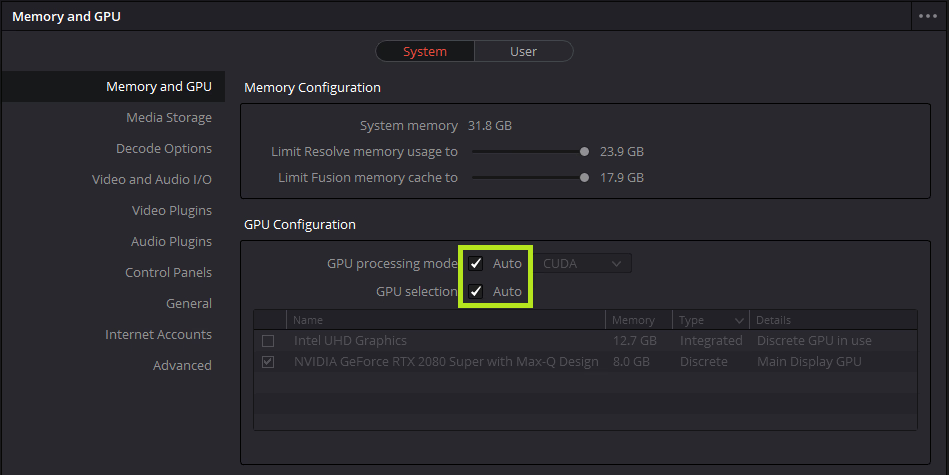
- Go to
DaVinci Resolve > Preferences > System > Memory and GPU. - Limit Memory Usage: Ensure Resolve is allocated 70–80% of your total physical system RAM, leaving 4GB–6GB for your operating system and background tasks. If you are building or configuring a creative editing rig, check out our guide on essential workstation PC and Mac software deals to optimize your environment.
- GPU Processing Mode: Uncheck Auto and explicitly select CUDA (for NVIDIA GPUs), Metal (for Apple Silicon M1/M2/M3/M4), or OpenCL (for AMD GPUs).
- GPU Selection: Uncheck Auto and verify that your high-performance dedicated graphics card is checked, while any integrated display adapters are unchecked.
- On Windows, navigate to
Windows Settings > System > Display > Graphics, add DaVinci Resolve, and force High Performance.
7The Free vs. Studio Hardware Acceleration Reality
Many video editors struggle with persistent playback lag despite running powerful multi-core processors and modern graphics cards. In many instances, the bottleneck isn't their computer—it is the functional limitation of the free version of DaVinci Resolve.
On Windows, the free version does not support hardware GPU decoding for 10-bit 4:2:2 H.264/H.265 media (the standard recording format for cameras like the Sony A7S III, FX3, Canon R5/R6, and Panasonic GH6). Instead, it forces your CPU to decode video frame-by-frame, causing immediate 100% CPU spikes and dropped frames.
🚀 Unlock Full GPU Hardware Acceleration & Neural Engine
DaVinci Resolve Studio provides dedicated hardware decoding for all 10-bit codecs, multi-GPU processing, automated Magic Mask tracking, Voice Isolation, and advanced temporal noise reduction. Best of all, unlike Adobe Creative Cloud, it is a lifetime license with zero ongoing monthly fees. To understand how one-time software licenses protect creative studios from runaway subscriptions, read our breakdown on what is a lifetime software license and how it works.
8Optimize Drive Setup & Disable Background Resource Hogs
Video editing relies heavily on read/write disk throughput. A single 4K ProRes stream requires sustained transfer rates of over 150MB/s, while multi-camera edits demand even higher speeds. If your source media or cache folder resides on a mechanical hard drive (HDD) or a slow external USB-A drive, timeline stutter is inevitable.
- Use Dedicated SSDs: Keep your operating system on one drive, your cache folder on a secondary fast NVMe M.2 SSD, and your project media on a dedicated high-speed external drive (USB 3.2 Gen 2 or Thunderbolt).
- Disable Antivirus Active Scanning: Add your Resolve
CacheClipand project media directories to your Windows Defender or antivirus exclusion list. Real-time file scanning on thousands of generated cache frames introduces severe micro-stuttering. - Close Hardware-Accelerated Apps: Web browsers (Chrome/Brave), Discord, and screen capture overlays (ShadowPlay, Xbox Game Bar) consume precious VRAM in the background. Shut down non-essential applications prior to heavy grading or rendering sessions.
Related Video & Audio Editing Guides:
If timeline lag escalates into random export failures or software shutdowns, follow our step-by-step diagnostic fixes in Why Does DaVinci Resolve Keep Crashing? 9 Fixes for Freezes, GPU Errors & Render Fails. Looking to build a fully licensed creative studio without monthly overhead? Discover how lifetime software licenses work to lock in permanent access to professional tools.
Frequently Asked Questions
How do I make DaVinci Resolve run faster on a low-end PC or laptop?
To make DaVinci Resolve run smoothly on a lower-spec laptop: (1) Set Playback > Timeline Proxy Resolution to Quarter, (2) Generate DNxHR LB proxy media, (3) Lower your Timeline Resolution to 1080p in Project Settings while editing, and (4) Allocate maximum system RAM under Preferences > System > Memory and GPU.
How do I change resolution in DaVinci Resolve without messing up my timeline?
Go to Project Settings (Shift + 9) > Master Settings > Timeline Resolution. Change your resolution (for example, from 4K to 1920x1080). Make sure "Mismatched Resolution Scale" is set to "Scale entire image to fit" so your crops, titles, and aspect ratios remain unchanged. You can switch back to 4K right before exporting.
Is it safe to delete the CacheClip folder in DaVinci Resolve?
Yes. The CacheClip folder contains pre-rendered cache and optimized media files, not your original camera footage or project database. Deleting cache files frees up disk space and resolves stuttering caused by corrupted render data. Resolve will automatically regenerate cache files for active clips when needed.
Why is noise reduction making my DaVinci Resolve playback lag?
Temporal Noise Reduction analyzes multiple frames forward and backward to isolate digital sensor noise, requiring massive GPU shader calculations. To keep editing smoothly, leave noise reduction nodes disabled until your final color pass, or right-click the noise reduction node and select "Node Cache > On".
Does DaVinci Resolve Studio run faster than the free version?
Yes, significantly. DaVinci Resolve Studio includes multi-GPU support and dedicated hardware acceleration for 10-bit H.264/H.265 camera codecs. On the free version, 10-bit files are decoded entirely by your CPU, leading to dropped frames, timeline stutter, and high thermal throttling.
Summary: The Golden Path to Smooth Playback
DaVinci Resolve does not have to feel sluggish or heavy. By dropping your timeline proxy resolution during rough cuts, converting demanding camera files into lightweight DNxHR/ProRes proxies, and managing your cache storage properly, you can achieve liquid-smooth 60fps scrubbing on virtually any modern PC or Mac.
Take two minutes today to clear out your stale CacheClip folder, toggle your Timeline Proxy Resolution to Half, and set your GPU processing mode explicitly. Your timeline will instantly feel faster and more responsive.