
Whether you are switching to a perpetual RAW photo editor, reducing monthly expenses, or scaling back your photography workflow, canceling your Adobe Lightroom subscription takes less than three minutes when done through the correct billing portal.
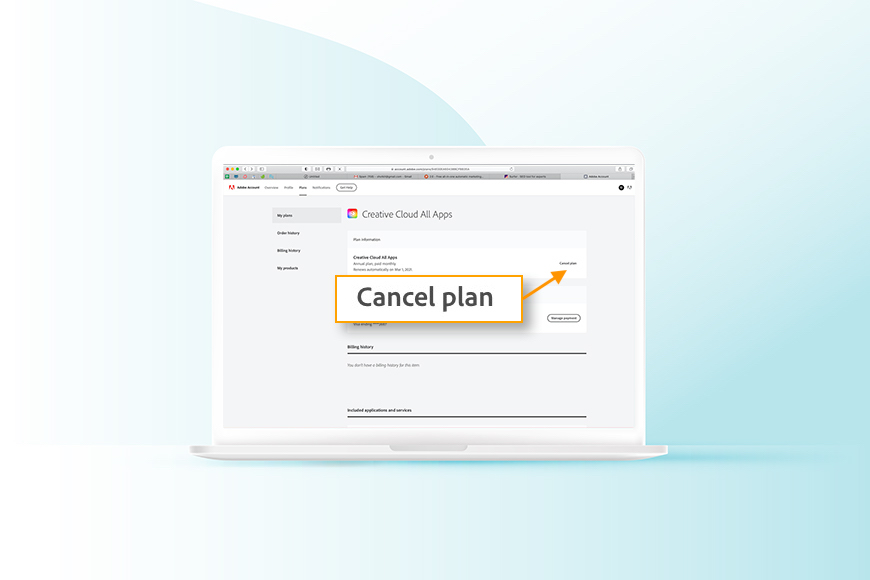
To cancel an Adobe Lightroom subscription purchased directly from Adobe: Sign in to your account at account.adobe.com/plans, locate your Lightroom (or Photography Plan) under My Plans, click Manage plan, choose Cancel your plan (or Cancel subscription), select your cancellation reason, and confirm the cancellation on the final review screen.
Note: If you subscribed through the Apple App Store on iOS or Google Play Store on Android, you must cancel directly via your device’s operating system subscription settings rather than Adobe's website.
1. Step 0: Identify Your Billing Merchant
Adobe plans are strictly managed by the platform that processed your billing. Attempting to cancel an in-app mobile purchase on Adobe’s web dashboard will not show an active cancellation button.
| Where You Subscribed | Lightroom Plan Type | Cancellation Channel |
|---|---|---|
| Adobe Official Website | Lightroom 1TB / Photography Plan (Ps + Lr) | Adobe Account Management Portal |
| Apple App Store (iOS / Mac) | Lightroom Mobile Premium / CC | Apple ID Settings > Subscriptions |
| Google Play Store (Android) | Lightroom Mobile Premium | Google Play > Payments & Subscriptions |
| Amazon / Best Buy / Retailer | Prepaid Digital Card / Membership | Retailer Account Subscriptions |
2. How to Cancel Adobe Lightroom in 3 Easy Steps (Web Browser)
Follow these steps if you purchased your subscription (Lightroom Standalone or Photography Plan) directly on Adobe.com:
Go to account.adobe.com/plans and log in with the Adobe ID email linked to your photography plan. On your dashboard, locate the Lightroom tile under My Plans and click Manage plan.
In the plan details panel, click Cancel your plan (or Cancel subscription). Select a reason for canceling (e.g., "Too expensive" or "Using other tools") and click Continue.
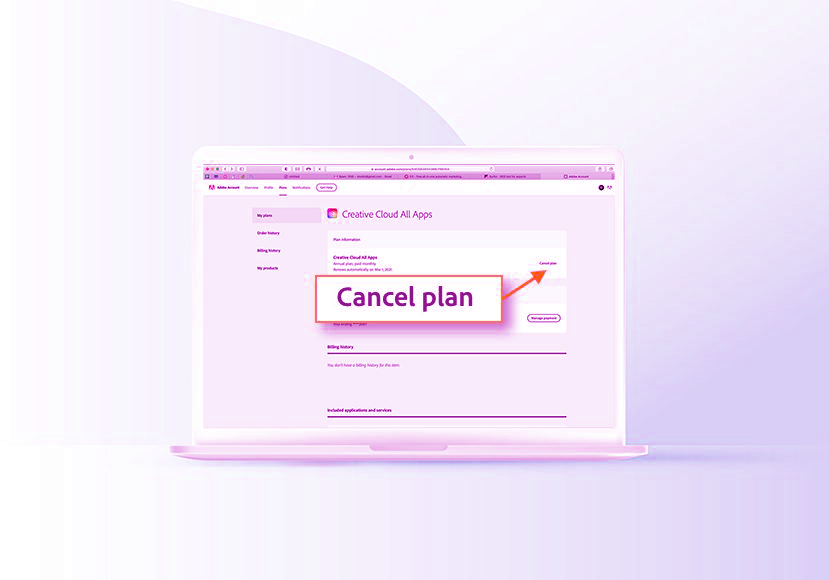
Adobe may present retention offers such as discounts or temporary cloud storage; click No thanks or Continue to cancel. Review your remaining access date and any fee details on the final screen, then click Confirm cancellation.
3. How to Cancel Lightroom on iPhone, iPad & Android
If you signed up through an in-app purchase on your mobile device:
On Apple iOS (iPhone & iPad):
- Open the Settings app on your device.
- Tap your Name / Apple ID banner at the top.
- Tap Subscriptions.
- Select Adobe Lightroom from your active subscriptions.
- Tap Cancel Subscription (or Cancel Free Trial) and confirm.
On Android (Google Play Store):
- Open the Google Play Store app.
- Tap your Profile Icon in the top-right corner.
- Select Payments & subscriptions > Subscriptions.
- Select Lightroom from the list.
- Tap Cancel subscription at the bottom and confirm.
4. Lightroom Refund Policy & Early Termination Fees
Adobe enforces specific contractual terms depending on whether you are on a month-to-month plan or an annual commitment:
| Plan Type | Canceled Within 14 Days | Canceled After 14 Days |
|---|---|---|
| Annual plan, paid monthly | 100% Full Refund | 50% Early Termination Fee on remaining months |
| Annual plan, prepaid | 100% Full Refund | No refund; access remains active until year ends |
| Monthly plan (no annual contract) | 100% Full Refund | No refund; access continues until end of billing cycle |
5. Decision Rule: How to Avoid the 50% Early Termination Fee
If you are past the initial 14-day window on an annual contract, you can avoid early cancellation penalties using one of these two proven methods:
In your Adobe dashboard, click Manage plan > Change plan. Switch your subscription to a different standalone monthly plan. Switching plans activates a fresh 14-day cancellation window. Once the switch takes effect, return to your account within 14 days and cancel the new plan for a full refund with zero early termination fee.
Contact Adobe support via official live chat at helpx.adobe.com/contact.html. Politely explain that you are canceling due to hardware limitations or financial constraints. Customer support agents frequently have the authority to waive early termination fees upon request.
For more detailed strategies, read our verified guide on how to cancel Adobe subscription without paying a fee or our step-by-step tutorial on how to delete an Adobe account completely.
6. What Happens to Your Photos & RAW Catalogs After Canceling?
Many photographers worry that canceling Lightroom will lock or delete their photo library. Here is exactly what happens:
- Lightroom Classic (Desktop Catalogs): You retain permanent access to all your local photos and catalog files (`.lrcat`). The Library module remains fully functional—you can continue organizing, filtering, tagging, and exporting your images. Only the Develop module (RAW editing adjustments) and Map module become disabled.
- Lightroom Cloud (Desktop & Mobile): Adobe provides a 1-year grace period for photos stored in the cloud. You can continue downloading your original files to local storage via the Adobe Lightroom Downloader app. After one year, cloud files may be deleted.
- Local RAW & Presets: All custom presets, exported JPEGs/TIFFs, and local RAW images remain 100% intact on your hard drive.
7. Top Lifetime (Non-Subscription) RAW Photo Editing Alternatives
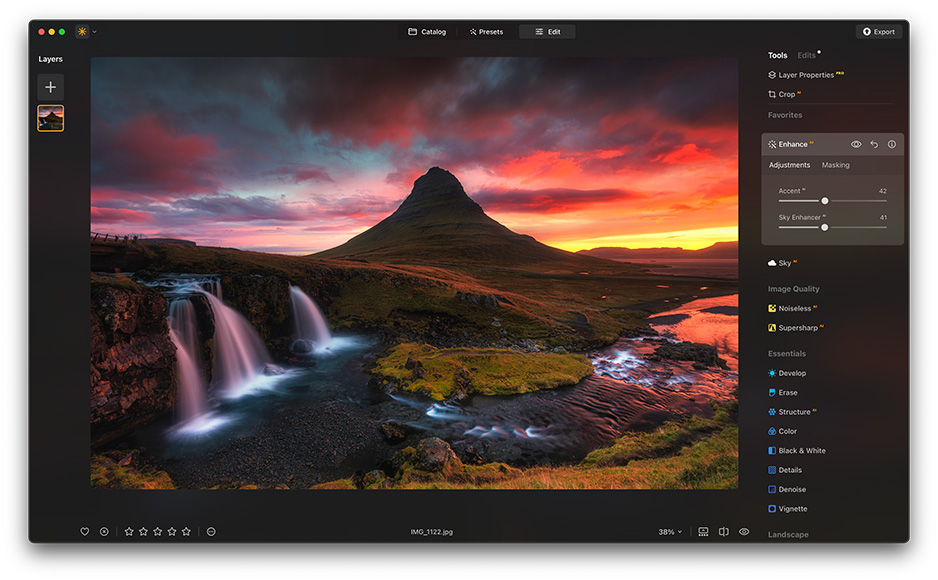
If you want to edit and organize RAW photos without paying continuous monthly rental fees, consider these perpetual license alternatives:
| Alternative Software | Pricing Model | Key Advantages |
|---|---|---|
| Capture One Pro | Perpetual License Option | Industry-leading color science, precision layer masking, and professional studio tethering. |
| Affinity by Canva (Pixel Studio) | 100% Free | Professional RAW development, non-destructive layer editing, and PSD compatibility with zero subscriptions. |
| DxO PhotoLab | One-Time Purchase | Unrivaled DeepPRIME AI noise reduction, optical lens correction profiles, and local file management. |
| Darktable / RawTherapee | Free & Open Source | Powerful parametric editing, non-destructive workflows, and cross-platform support. |
Discover genuine, lifetime license tools for Mac software and PC software in the CDRBSoftwares store.
8. Frequently Asked Questions
Yes. You can continue to launch Lightroom Classic and use the Library module to organize, view, and export your existing photos. Only the Develop module (editing adjustments) and cloud synchronization will be deactivated.
If you subscribed through Apple or Google Play, yes. You must cancel through your phone's subscription settings (iOS Settings > Apple ID > Subscriptions, or Google Play > Payments & Subscriptions). If you subscribed on Adobe.com, you must cancel via account.adobe.com.
No. All photos stored on your computer or local hard drives remain safe. For cloud-synced photos, Adobe offers a 1-year grace period to download your original full-resolution files before cloud storage is cleaned up.
If you cancel your subscription within 14 days of your initial purchase or renewal, Adobe automatically processes a 100% full refund to your original payment method within 5–7 business days.